If you are looking to use offset punches on your machine to get as close to the heel as possible, don't worry as Raptor version 4.5.0 and above support Offset Punch Tools.
If you are on an older version than 4.5.0, then we recommend updating when possible so this option is avaliable to you.
This is supported on all anglemasters.
Creating an Offset Punch in Raptor
- Step 1: Program an Offset tool In the Tooling Library
- Step 2: Select the Tool in the Tool Grid
Step 1: Program an Offset tool in the Tooling library
- If you have updated to 4.5.0, there is an option to add an offset to any punch tool. We recommend having seperate entries for your offset tools. You will want to go to Tools > Tooling to open up your tooling library, then select punches.
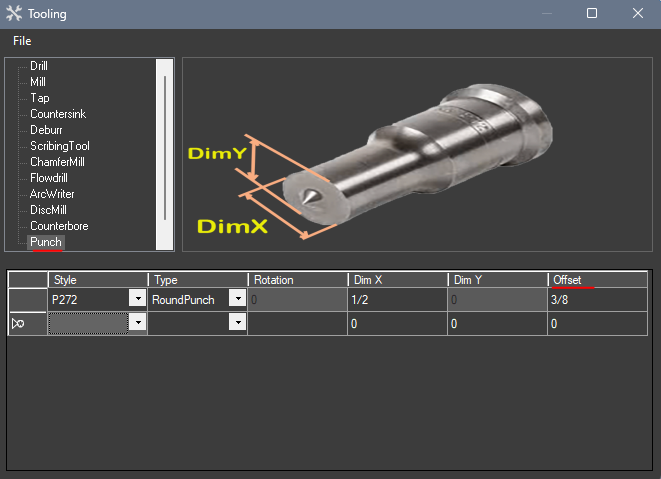
- Once you enter in your tooling information you can then add your offset. This value should be on the order when you purchased the tool
Step 2: Select tool in the tool grid.
- Once you've created your tool, exit out of that screen and double click on the slot in the tooling grid at the bottom left coner of the softwre to match what you have loaded in the machine. Once you hover over it, it should display if the punch has an offset.
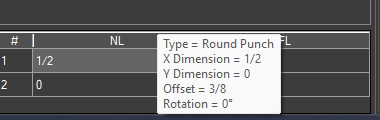
- Keep in mind that you will want to ensure the tools match what you have loaded in the machine. The machine will not know if you changed the tools in Raptor so verifying this information is important for your machine safety.
- After this is verified, you can generate CNC for holes that were previously removed due to safety distances.
If you need further assistance, please contact Raptor Support.
Was this article helpful?
That’s Great!
Thank you for your feedback
Sorry! We couldn't be helpful
Thank you for your feedback
Feedback sent
We appreciate your effort and will try to fix the article