If you are wanting to nibble slots out on your anglemaster, there will be settings you will need to configure in order to complete this process.
Keep in mind that it is not recommended to nibble 100% of the time as this adds wear and tear to your punch assembly.
Compatiable machines: 643/Q, 643/S, 663/R, 863/D, 833/A, Clipper, Clipper 2
Nibbling on your anglemaster
- Step 1: Enable nibbling in machine settings
- Step 2: Enable Unsafe Mode
- Step 3: Program the slots
- Step 4: Program the tools
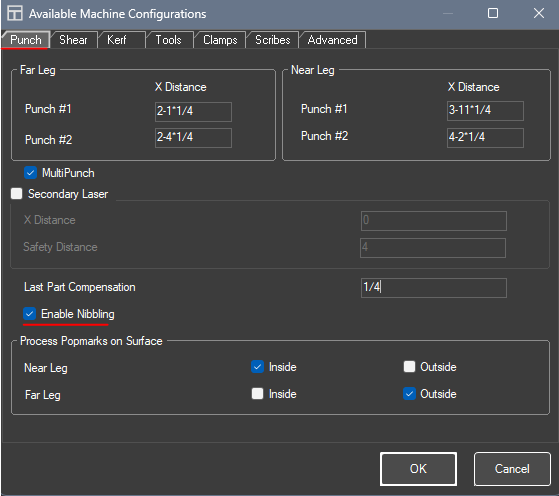
Step 1: Enable nibbling in machine settings
- If you want to nibble on your machine, first you will want to enable this in machine settings. You will want to go to Tools > Machining > Punch. This will be the same across all anglemasters, though the placement may vary depending on your model.
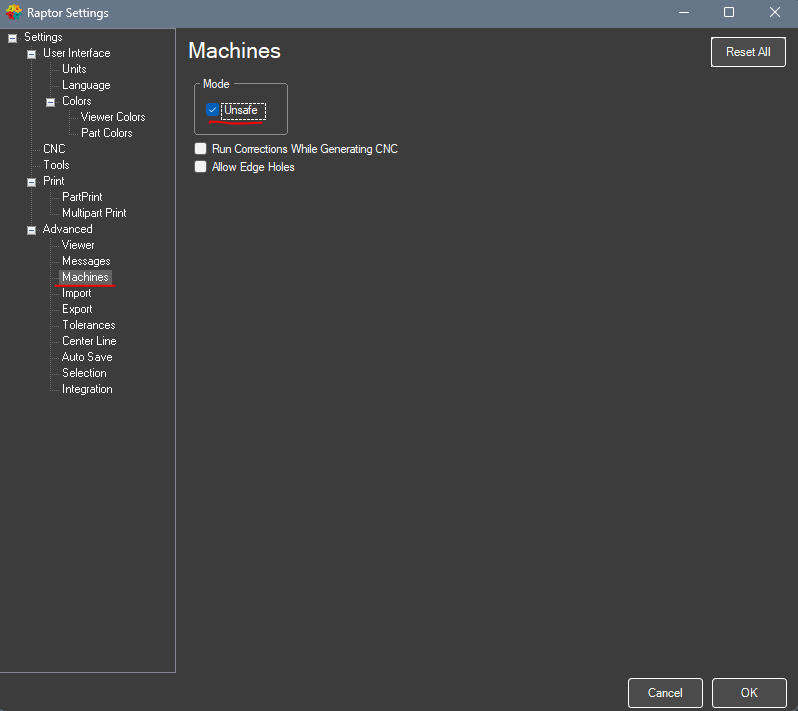
Step 2: Enable Unsafe Mode
- Once you enable nibbling you would also need to enable unsafe mode in Raptor. This is located in Tools > Settings > Advanced > Machines.
Step 3: Program the slots
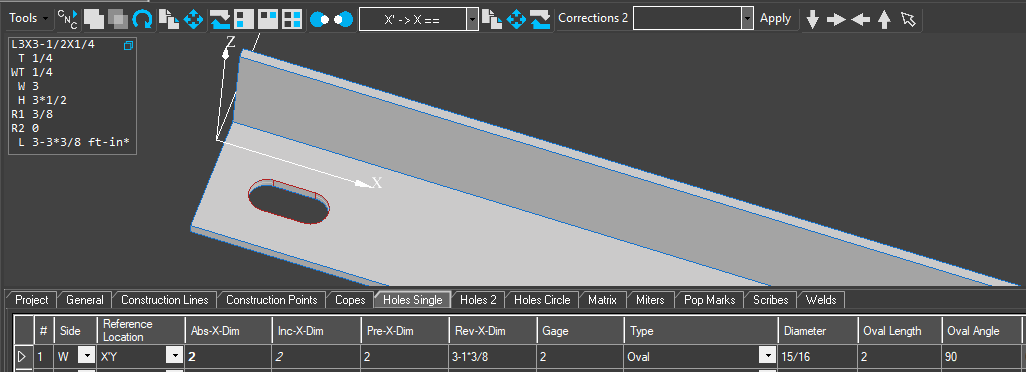
- Once you enable these two settings, all that is left is to program the slots you want to nibble and select the tool you want to use. The slot should be programmed as follows:
- Slots must be programmed as an oval hole.
- Diameter must be the size of the round punch you are using.
- EX: If you are wanting to use a 15/16" punch for a 15/16" x 2" slot, you would want to program the oval hole with a diameter of 15/16"
- The length will be however long you want the slot to be.
- The Oval Angle will determine the orientation of the punch. If you want it to be vertical, you would leave this at 0. If you want the slot to be horizontal, then you would want to set this value to 90 degrees.
Step 4: Program the tool
- Once the slot is programmed the only thing left is to program the tool. You can use both Round and Oval punches to nibble, but we typically use Round punches. You would want to select the round punch for the leg that has the slot. Once you generate CNC, it should be successful
If you continue to have issues with slots, please contact Raptor Support.
Was this article helpful?
That’s Great!
Thank you for your feedback
Sorry! We couldn't be helpful
Thank you for your feedback
Feedback sent
We appreciate your effort and will try to fix the article