Updating Raptor on a PC in the office is simple process that should only take a couple of minutes. If you do not have the appropriate permissions you may need to involve your IT department.
Update Raptor
- Step 1: Save Settings Before Updating
- Step 2: Help > Check Updates
Step 1: Save Settings Before Updating
- We highly recommend saving settings before updating to ensure that you have a copy if you need to reload them. You can do this by going to File > Save Settings
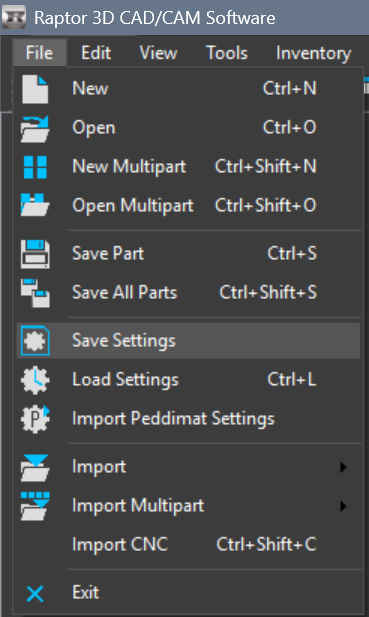
- The file can be named whatever you'd like as long as it is identifiable to you.
Step 2: Help > Check Updates
- Once you are ready to update you will want to go to Help > Check Updates
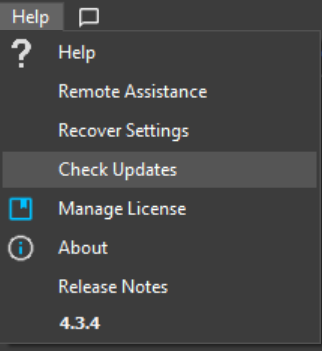
- If there is an update avaliable, it will look something like this. You will want to click the download button to download the most recent installer.
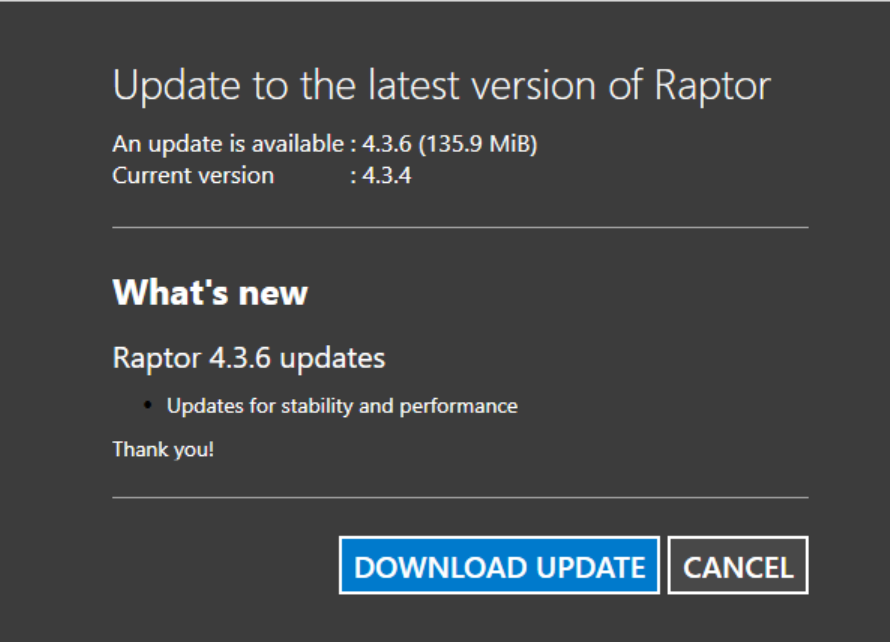
- Once it is done downloading, you will want to click "Install Update"
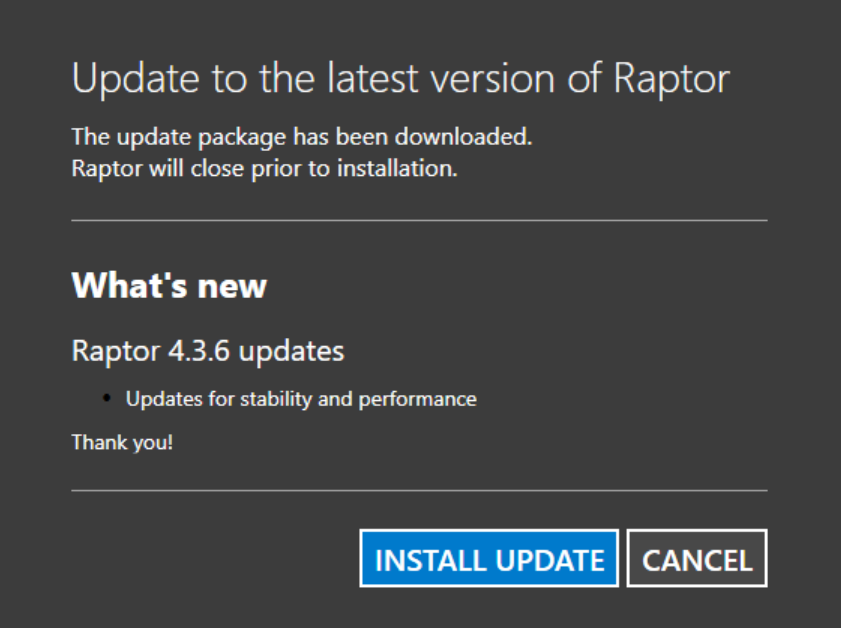
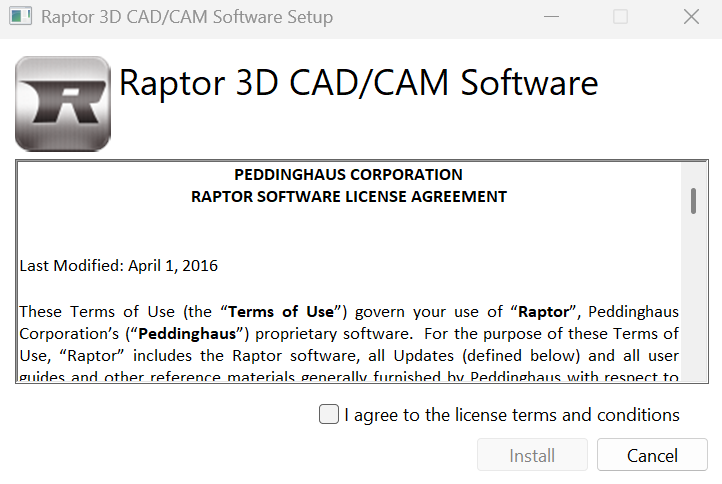
- After you do this you will want to follow the prompts in this window. Once you do this the installation should complete.
Still having trouble? If so please contact support and we will be able to assist.
Need to update at the machine control out in the shop? Please reference "How do I update Raptor at the machine control?"
Was this article helpful?
That’s Great!
Thank you for your feedback
Sorry! We couldn't be helpful
Thank you for your feedback
Feedback sent
We appreciate your effort and will try to fix the article