When you renew the software license maintenance, it is important to update the license at the machine so updates can be performed. Here is a guide on how to make this a seamless process.
Changing out Raptor license at the machine
Step 1: Generate license request file (.licrequest)
- To generate a license request file you must do this within Raptor. Depending on the version will determine where you will go.
- If it is pre 2025, you will go to Help > Request License.
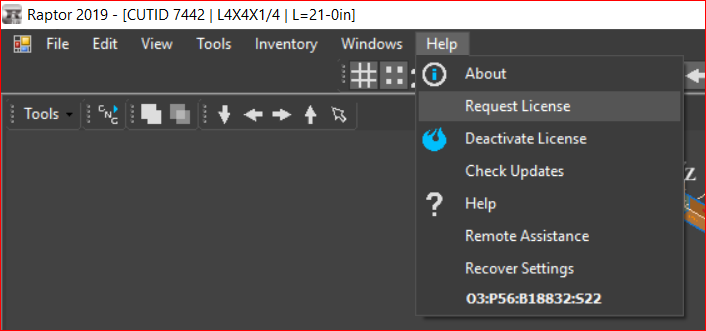
- If it is 2025 or after, you will go to Help >Manage License. In this window you will be able to then click Create License Request.
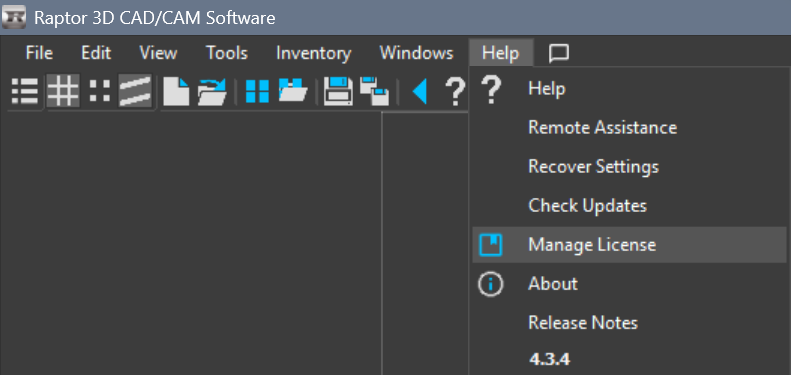
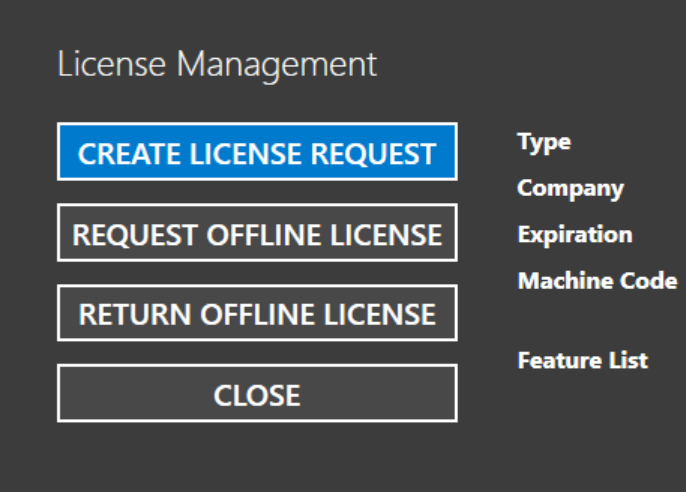
- If it is pre 2025, you will go to Help > Request License.
- You will want to generate this file in a spot where you can either access it in the office such as a network drive or on a USB drive. The name does not matter but some customers will label it with their machine name for organizational purposes.
Step 2: Email over the file (.licrequest)
- Once the file has been generated it will need to be emailed over. The best place to email the file to will be raptorlicense@peddinghaus.com
Step 3: Recieve new license file
- Within 24 hours you should recieve your new file. Our office hours are M-F 8AM-5PM CST.
Once you've recieved your license you will want to follow the License Removal Procedure
Was this article helpful?
That’s Great!
Thank you for your feedback
Sorry! We couldn't be helpful
Thank you for your feedback
Feedback sent
We appreciate your effort and will try to fix the article