If you have never used our license removal tool before, don't worry! It's a simple executable and should only take a couple of minutes. If you do not have admin privileges you may need to involve your IT group to assist you with this.
Remove old license
Step 1: Run License Removal Tool as Admin
- Save the tool in a location where you can access it later. We typically recommend saving it to the Desktop or saving it in a folder labeled Raptor
- Right click and run as administrator.
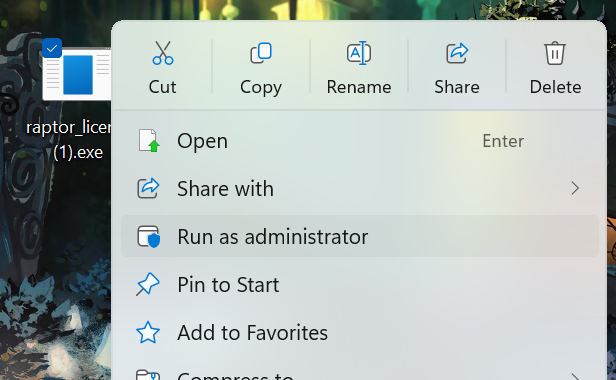
Step 2: Remove old license
- The license removal tool will open up and look like this:
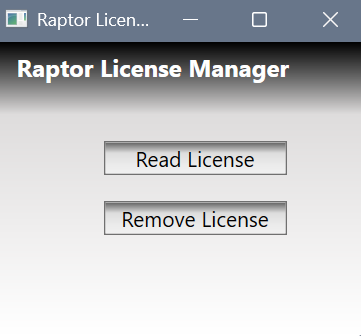
- Click "Remove License" and click "Yes"
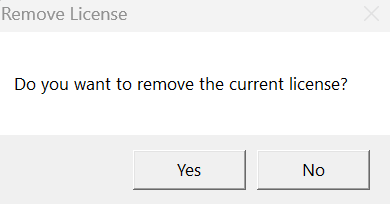
- When you click "Read License" it should be blank or have one string of letters/numbers like this:
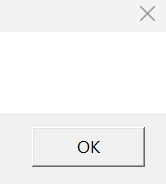 NOTE: If this does not remove the license on the first try, try to remove the license again. If it has 10-12 lines of letters/numbers the license has not been removed successfully
Step 3: Open Raptor and apply new license
- When you open up Raptor, it should prompt the license window or say that the license is invalid like so:
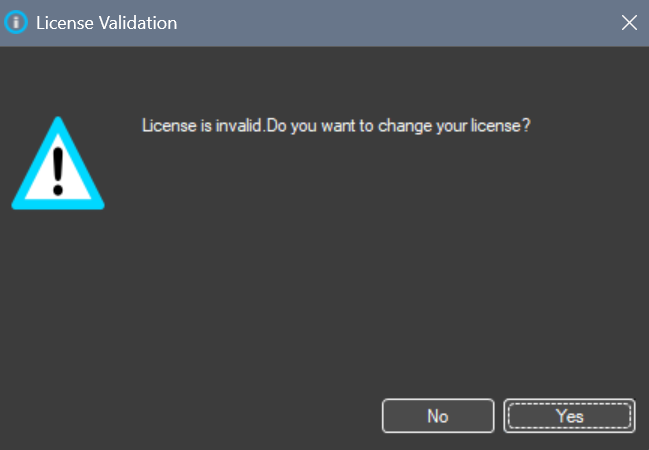
- You will want to click yes and apply the license file that was previously sent over. In this window you'll want to click "Load from File"
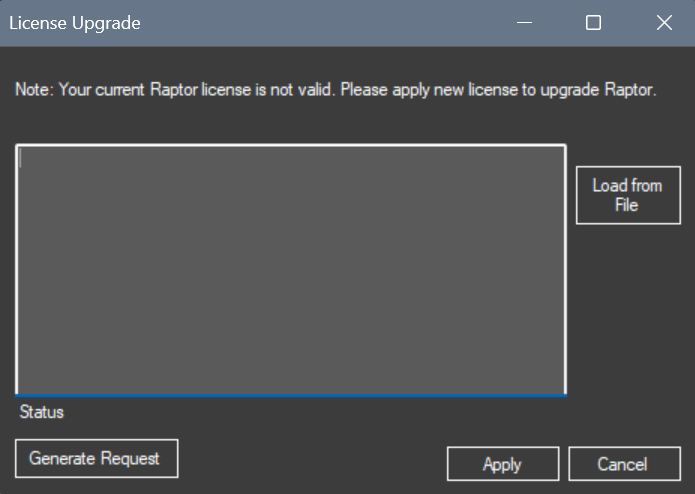
- Once you load the file you will want to click "Apply". After this Raptor should run successfully.
If you have issues with applying your license, please contact support for further assistance.
Was this article helpful?
That’s Great!
Thank you for your feedback
Sorry! We couldn't be helpful
Thank you for your feedback
Feedback sent
We appreciate your effort and will try to fix the article